

The Complete Size Guide for Every Model
Setting a wallpaper sounds simple until it looks blurry, cropped weird, or stretched on your screen. The right iPhone wallpaper size for most modern iPhones is 1,179 × 2,556 pixels for standard models and 1,290 × 2,796 pixels for Plus and Pro Max variants.
What Are iPhone Wallpaper Dimensions?
Your iPhone wallpaper dimensions are the width and height of the image your screen needs, measured in pixels. Every iPhone model has a native screen resolution — and your wallpaper needs to match or exceed that resolution to look sharp.
iOS applies a parallax effect — a subtle shift in the image as you tilt your phone — which means your wallpaper should be around 10–15% larger on each side than your visible screen to prevent awkward cropping.
Modern iPhones pack 460 pixels per inch (PPI) on Pro models — one of the sharpest smartphone displays available. A low-resolution image that looks fine on a laptop will look visibly grainy on your iPhone lock screen.
iPhone Wallpaper Dimensions — Full Size Chart
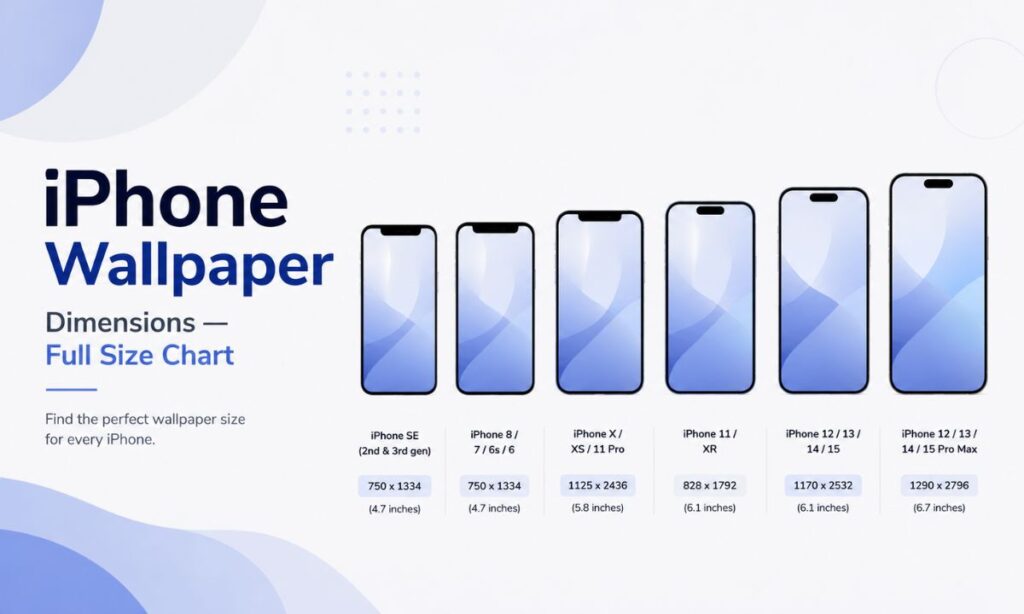
iPhone 16 Series (2024) — Current Models
| Model | Screen | Dimensions | Ratio | PPI |
| iPhone 16 Pro Max | 6.9″ | 1,320 × 2,868 px | 19.6:9 | 460 |
| iPhone 16 Pro | 6.3″ | 1,206 × 2,622 px | 19.6:9 | 460 |
| iPhone 16 Plus | 6.7″ | 1,290 × 2,796 px | 19.5:9 | 460 |
| iPhone 16 | 6.1″ | 1,179 × 2,556 px | 19.5:9 | 460 |
iPhone 15 Series (2023)
| Model | Screen | Dimensions | Ratio | PPI |
| iPhone 15 Pro Max | 6.7″ | 1,290 × 2,796 px | 19.5:9 | 460 |
| iPhone 15 Pro | 6.1″ | 1,179 × 2,556 px | 19.5:9 | 460 |
| iPhone 15 Plus | 6.7″ | 1,290 × 2,796 px | 19.5:9 | 460 |
| iPhone 15 | 6.1″ | 1,179 × 2,556 px | 19.5:9 | 460 |
iPhone 14 Series (2022)
| Model | Screen | Dimensions | Ratio | PPI |
| iPhone 14 Pro Max | 6.7″ | 1,290 × 2,796 px | 19.5:9 | 460 |
| iPhone 14 Pro | 6.1″ | 1,179 × 2,556 px | 19.5:9 | 460 |
| iPhone 14 Plus | 6.7″ | 1,284 × 2,778 px | 19.5:9 | 458 |
| iPhone 14 | 6.1″ | 1,170 × 2,532 px | 19.5:9 | 460 |
iPhone 13 & 12 Series
| Model | Screen | Dimensions | Ratio | PPI |
| iPhone 13 Pro Max / 12 Pro Max | 6.7″ | 1,284 × 2,778 px | 19.5:9 | 458 |
| iPhone 13 Pro / 12 Pro | 6.1″ | 1,170 × 2,532 px | 19.5:9 | 460 |
| iPhone 13 mini / 12 mini | 5.4″ | 1,080 × 2,340 px | 19.5:9 | 476 |
iPhone SE & Older Models
| Model | Screen | Dimensions | Ratio | PPI |
| iPhone SE (3rd Gen) | 4.7″ | 750 × 1,334 px | 16:9 | 326 |
| iPhone 11 Pro Max | 6.5″ | 1,242 × 2,688 px | 19.5:9 | 458 |
| iPhone 11 Pro | 5.8″ | 1,125 × 2,436 px | 19.5:9 | 458 |
| iPhone 11 | 6.1″ | 828 × 1,792 px | 19.5:9 | 326 |
Note: iPhone 11 uses an LCD Liquid Retina display (326 PPI), not OLED. Some older guides list this wrong — always double-check before designing.
How to Find Your iPhone Wallpaper Dimensions
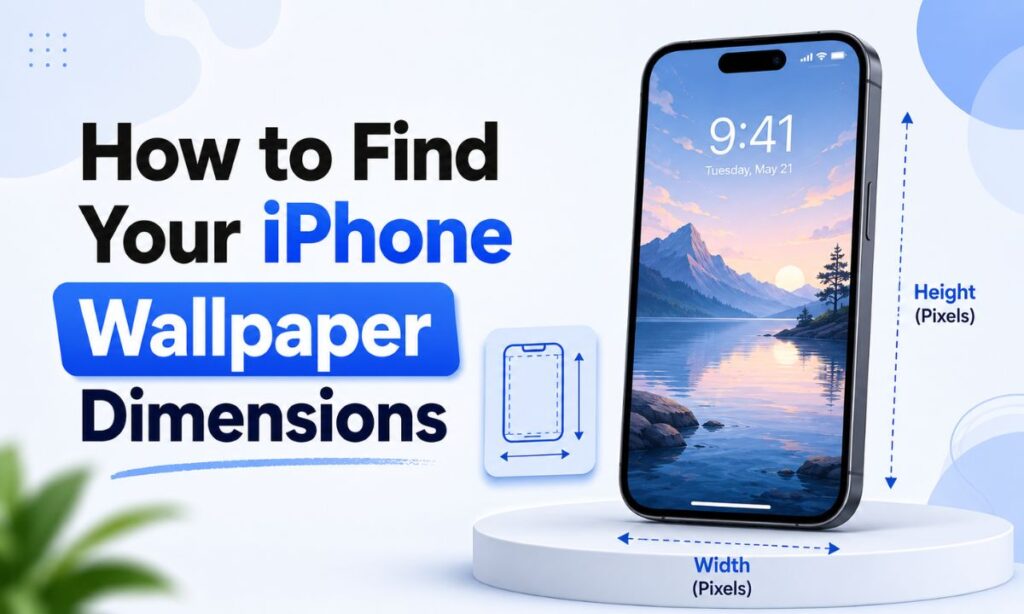
Method 1: Check Your Model Number
Go to Settings → General → About and look for “Model Name.” Match that name to the chart above and you have your exact wallpaper dimensions instantly. This is the most reliable method — it takes about 10 seconds, works offline, and needs no third-party app.
Method 2: The Screenshot Trick
Take a screenshot (Side Button + Volume Up on Face ID iPhones). Open Photos, tap the screenshot, then tap the info icon (i). You’ll see the exact dimensions listed — something like “1,179 × 2,556” — which is your perfect iPhone wallpaper resolution right there.
Method 3: Use a Wallpaper Detection App
Apps like Wallpaper Size Finder auto-detect your screen resolution the moment you open them. Many also include pre-sized wallpaper libraries and show the parallax-adjusted size iOS actually uses behind the scenes.
Method 4: Check Apple’s Official Specs
Head to apple.com/iphone and navigate to the technical specifications page for your model. Scroll to the Display section — the native resolution will be listed there. This is the ground truth, straight from Apple.
Read AlsoRed Bull Can Dimensions: Size & Height (2026)
Why Does Your iPhone Wallpaper Look Blurry?
This almost always comes down to one of three things:
• Image too small: If your wallpaper is below your screen’s native resolution, iOS stretches it to fill the gap. Stretching always introduces blur. Always start at or above your native iPhone screen resolution.
• Lossy format: Saving as a heavily compressed JPEG strips out pixel detail. Use PNG for graphics and illustrations. Use HEIC or high-quality JPEG (90%+) for photos.
• Transfer compression: Sending via WhatsApp or Instagram DMs compresses the image automatically. Use AirDrop, iCloud Photos, or a direct cable transfer to keep the file intact.
Dynamic Island and Notch — What It Means for Your Wallpaper
If you own an iPhone 14 Pro or newer, your phone has a Dynamic Island — a floating pill-shaped cutout at the top of the screen that overlaps your wallpaper.
• Keep your focal point centered in the lower two-thirds of the image.
• Leave breathing room at the top 15% of your wallpaper canvas for the Dynamic Island and status bar.
• For older iPhones with a notch (iPhone X through iPhone 13), keep the sky, background, or negative space at the top.
Lock Screen vs. Home Screen Wallpaper Size
Technically, the pixel dimensions are the same for both. But they behave differently because of what’s layered on top:
• Lock Screen: Shows time, date, notifications, and widgets directly over your wallpaper. Clean wallpapers with strong contrast work best here.
• Home Screen: App icons sit on the wallpaper in a grid. A slightly darker or more saturated wallpaper gives the grid better visual structure.
How to Create Custom iPhone Wallpapers (Step-by-Step)
Creating your own pixel-perfect iPhone wallpaper takes about five minutes. Here’s the process using Canva:
1. Open Canva and click “Custom size”
2. Enter your iPhone’s exact dimensions (e.g., 1,179 × 2,556 px for iPhone 15 Pro)
3. Design your wallpaper — keep the focal point centered and away from the top edge
4. Export as PNG for graphics or high-quality JPEG for photos
5. AirDrop or iCloud it to your phone — skip WhatsApp, it compresses
6. Go to Settings → Wallpaper → Add New Wallpaper and select your image
7. Use pinch-to-zoom to make minor adjustments, then set for Lock Screen, Home Screen, or both
Conclusion
Your phone screen is the first thing you see each morning. Make it count. The right wallpaper — sized perfectly — feels like home every time you unlock it.
Getting iPhone dimensions right in 2026 isn’t complicated. It just takes a little care. Pick an image that speaks to you. Set it with intention. Your screen is small, but the joy it carries isn’t. Dress it well, and every glance becomes a tiny, quiet moment of happiness.